Posts

Showing posts with the label Google

Google Meet Will Now Tell You about Your Bad Network Connection

Image
After the pandemic, most people are doing work from home. Internet consumption suddenly raised after the pandemic. Poor speed is a major issue for users. Companies are getting a lot of complaints related to network issues. Now, tech titan Google came up with a solution for their very famous app Google Meet. Google Meet is offering a feature. The feature will send users a notification if their internet connection is damaged. This video chat app will provide tailored troubleshooting recommendations as well as quick action to reduce resource consumption. When users are unable to join the call, Google workspace will provide administrators with access to view examples and troubleshoot with the Meet Quality Tool. The Workspace Admin Tool has already been made available. While the new features of Google Meet have started on June 1. Through a series of posts on his workspace blog, Google announced several new features. These features are going to improve the calling experience on Google meet. ...

How to Use Microsoft Teams

Image
  Microsoft Teams is a platform that lets you conduct online meetings. Microsoft Teams helps users join online meetings sitting at home. It comes with various useful features and has been a great competitor to Zoom. It may be difficult to use Microsoft Teams if you are new to this platform. We have explained how to use it to conduct or join online meetings. It’s time to get started. Download the Microsoft Teams App on Android If you are an Android user, you can download the Microsoft Teams app on the Google Play Store. If you are an iOS user, you can download the app on the App Store. Download on Android device by following the steps: Go to Google Play Store on an Android Device. Type “Microsoft Teams” in the search bar. When the app icon appears in the results, tap on it. Now tap on “Install.” The app will be downloaded in a short while. Download the Microsoft Teams app on iOS Download it on an iOS device. Follow the presented instructions: Open App Store. Search for the app by ty...

Facebook’s Giphy introduces ‘Hire Me’ option for freelance Artists

Image
Facebook’s Giphy recently pushed out the ‘Hire Me’ option for freelance artists associated with animation and graphic designing. This in-app feature will enable the users to add the  hire me  option in their profile to let the recruiters know that they are available for hire. Various companies and brands will now be able to hire freelance artists and offer them work. This feature is indeed a great initiate by the Giphy app. It will provide unlimited opportunities to those freelancers who otherwise found it harder to adjust to office work. This initiative will also create new employment opportunities for those whose professional life was derailed by the raging pandemic. Giphy – A brief overview Giphy is an online database of short looping videos, GIFs, memes, and images. Users can post their content on this platform, and they can share the pictures and videos created by other artists. Its mobile app enables the user to spruce up their conversations through Emojis and text libra...

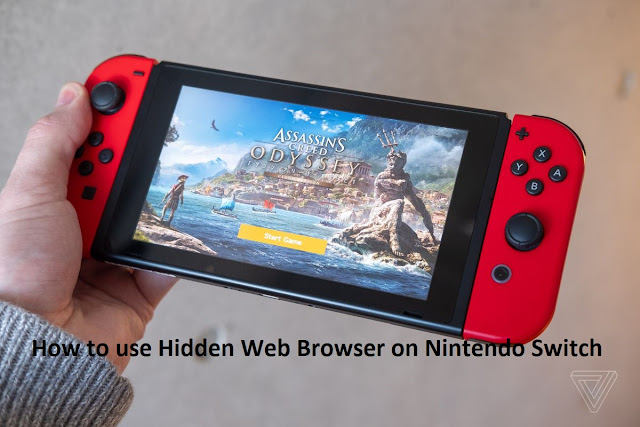
How to use Hidden Web Browser on Nintendo Switch

Image
Nintendo Switch is a handy video game console designed and introduced by Nintendo. The gaming console was introduced in the year of 2017. Gaming enthusiasts prefer Nintendo Switch due to its several amazing gaming features. There is a huge variety of games that users play on their Nintendo Switch console. Net surfing is quite amazing on this console, and if you want to do it then you can follow the methods mentioned in this article to use a web browser on your Nintendo Switch console. SOURCE:   Here’s how to use a web browser on Nintendo Switch , AOI Tech Solutions Using the web browser on your Nintendo Switch console is as easy as it sounds. Go through the steps mentioned below to use a web browser on Nintendo Switch: At first, scroll over to System Settings available in the dashboard of your Nintendo switch. Now, choose the Internet option. After selecting the Internet, choose Internet settings. Now, connect your Nintendo Switch console with the Wi-Fi you use. ...